
> ./blog / terminal-dotnet-recent-changes
What's New in terminal-dotnet: Faster Tests, Searchable Output and Big Workspaces
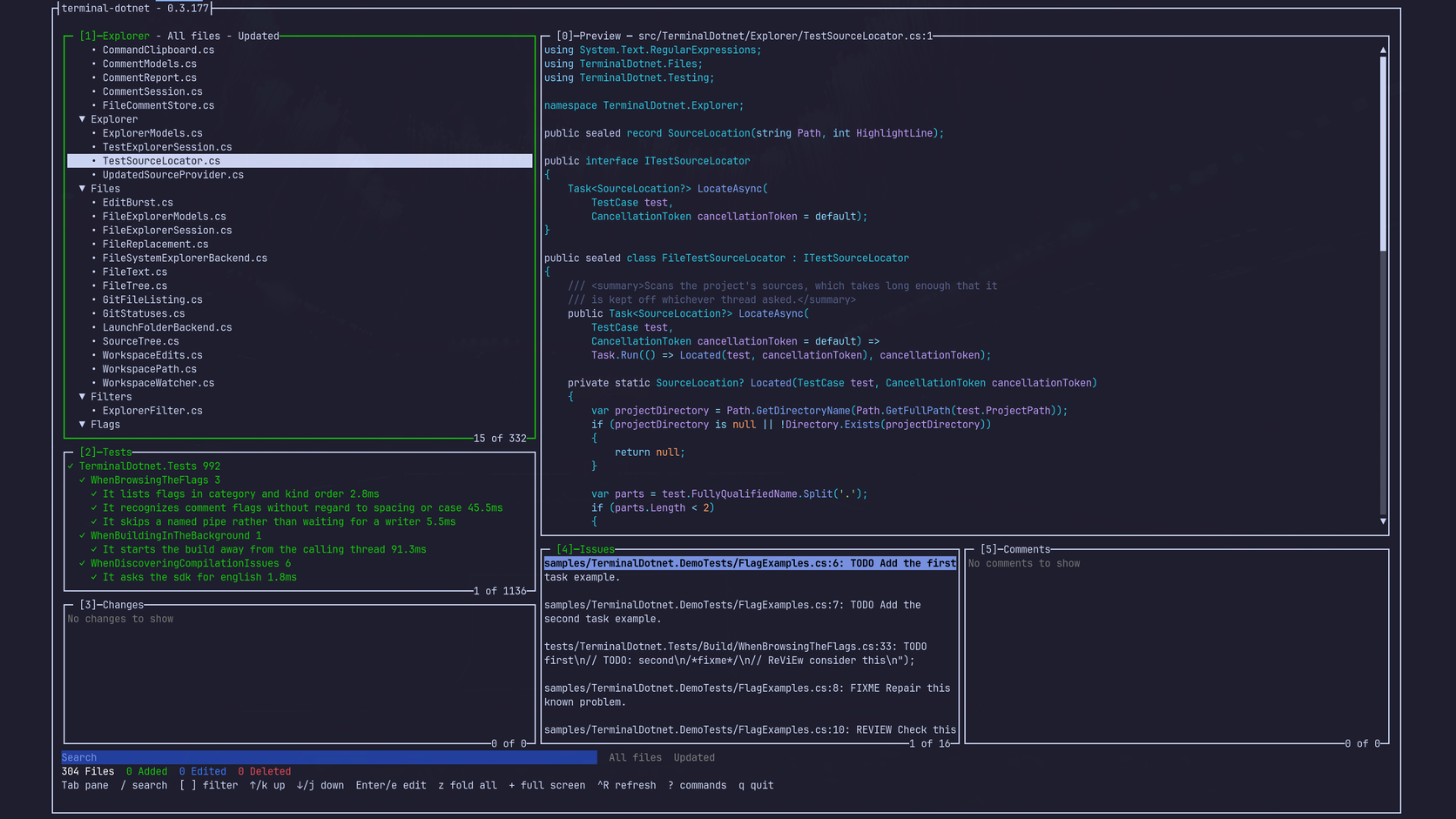
A few weeks ago I shared terminal-dotnet, the keyboard-driven terminal workspace for .NET I’ve been building, optimised for reviewing AI code rather than writing it myself. Since then I’ve been using it every day and every day I’ve spotted something to improve. So I’ve been shipping to it almost daily.
Some of the changes are small quality-of-life improvements. A couple are bigger: test runs no longer lock up the screen, and the test output is now something you can actually read and search. And I spent a good chunk of time making it behave on larger solutions after running it on some of my projects which have been worked on for 7 years.
Here’s a roundup of what’s changed.
Tests run in the background
The first thing I wanted fixed was the UI freezing while tests ran. Tests now run in a background process, so you can kick off a run and carry on reading code in the other panels. A toast pops up when the run finishes.
There’s also a new option to run all tests, and you can copy from the Tests panel ready to hand back any fails to the LLM.
Test output you can actually read
This one is very useful when you do have failing tests. Press o on a run and you get its captured output, which now opens at the end and follows along while the run is still going. If you scroll back to read something mid-run, it keeps your place rather than yanking you back to the bottom every time a new line arrives. That one was driving me mad.
You can now move through the output the way you’d expect:
/opens a search prompt, vim-style- every match is marked, and the current one is coloured apart from the rest
nandNstep forwards and backwards through the matches, and the status says which match you’re on- the mouse wheel scrolls, as do the preview’s usual keys
- a scroll bar appears when the output is longer than the screen
Long lines wrap to the width of the view, and wrapping now carries a word whole onto the next row rather than chopping it in half. Under the hood, the view only draws the rows that are on screen, so a long, noisy run doesn’t slow everything down.
Behaving on bigger solutions
On smaller repos everything was fine. On a larger workspace, the Tests panel could come up empty, the UI could stall, and occasionally the whole thing fell over. Not ideal for a tool that’s meant to save you time.
Most of the fixes are fairly unglamorous, but between them they make a big difference:
- Test discovery now lists one project at a time, so tests get filed under the right project instead of being muddled together
- if discovery or a rebuild finds nothing, it keeps the last tree you had rather than wiping the panel
- discovery at startup waits for a successful build, and the Tests panel says it’s waiting rather than reading stale assemblies
- dotnet builds and test runs now take turns rather than tripping over each other, and a command that hangs for over an hour gets stopped and reported instead of blocking everything after it
- a project that doesn’t finish is stopped and named, and each project shows up as it finishes
- running output appears as soon as it’s reported
- a run only holds the tail of its output while it runs, so a chatty test project can’t eat memory
- the terminal stays responsive while a build runs
- projects whose folder names have parentheses in them are found properly
If you’d tried terminal-dotnet on a big solution and given up, this is the release to try again with. And if it still misbehaves, I’d really like to hear about it.
Stepping through filters with [ and ]
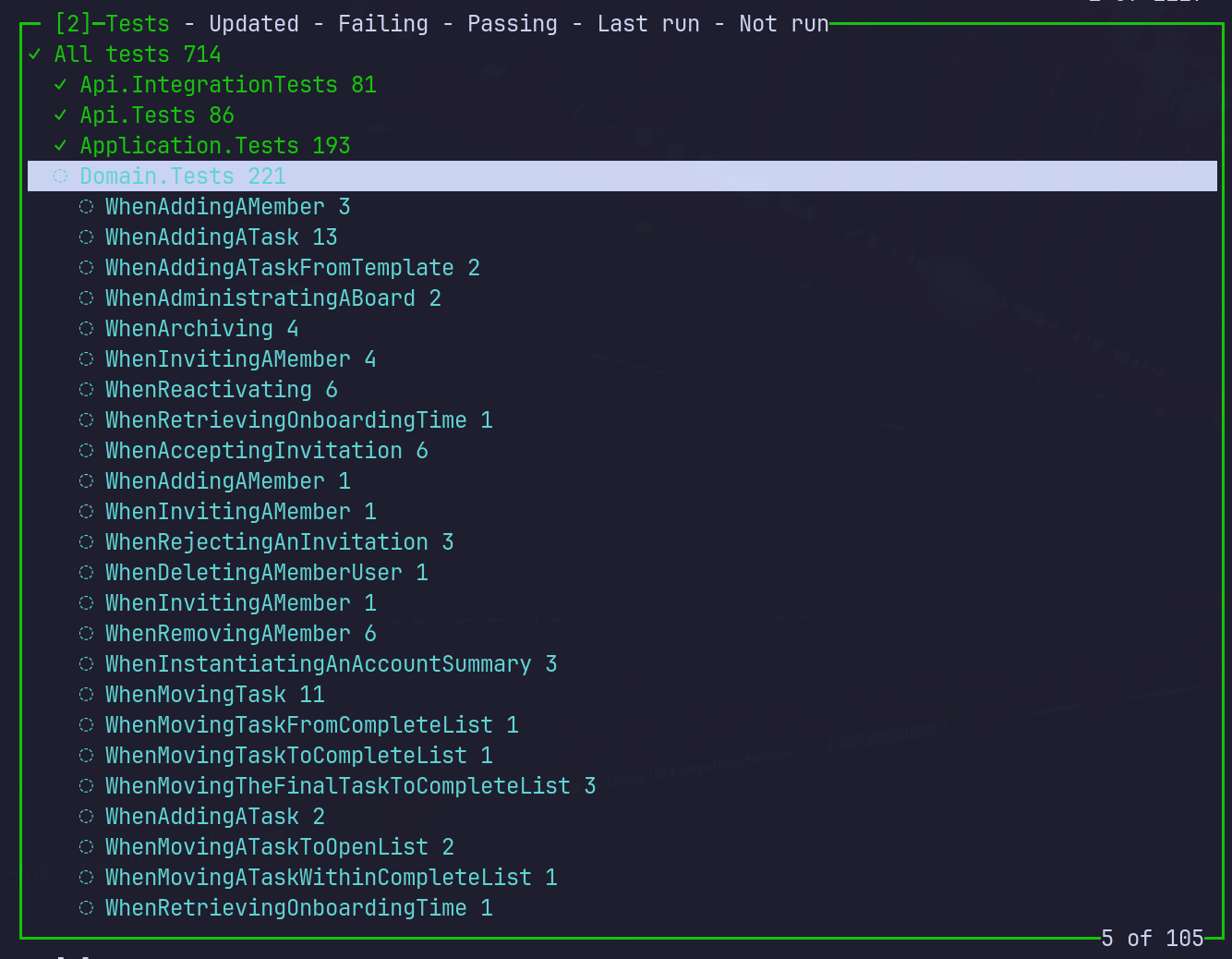
I got fed up remembering which letter mapped to which filter, so every panel now steps through its filters with ] and [. One step past either end takes you back to the unfiltered list.
- Tests: updated, failing, passing, last run and not run
- Issues: errors, warnings and flags
- Explorer: its listings, including Updated
The panel’s title spells out its filters, and the one in use shows green. [ and ] also appear in the shortcut bar and the command list, so you don’t have to remember them either.
Smaller things
A handful of smaller changes that I’ve used constantly since adding them:
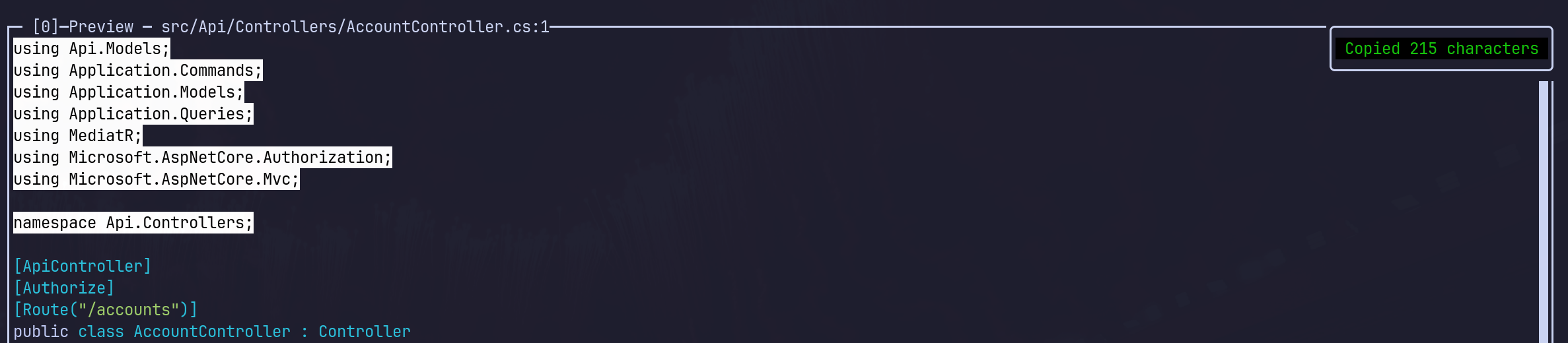
- Drag to copy. Drag-select text in the Preview and it’s straight on your clipboard, with a toast saying how many characters you grabbed. Drag past the edge and it scrolls with you.
- Scroll wheel in the Preview. Much more usable when you’re in Windows instead of Omarchy and you’re using your mouse.
- Diffs ignore line-ending changes. The Changes panel no longer shows a file as changed just because its line endings did.
Try it
terminal-dotnet runs on Linux, macOS and Windows, and installs as a .NET tool:
dotnet tool install --global terminal-dotnet
If you already have it, dotnet tool update --global terminal-dotnet brings you up to date. The code and docs are on GitHub at github.com/JohnJKerr/terminal-dotnet, and it’s MIT licensed and free.
If you live in .NET and the terminal, give it a spin and tell me what breaks. Issues and feedback on GitHub are very welcome.